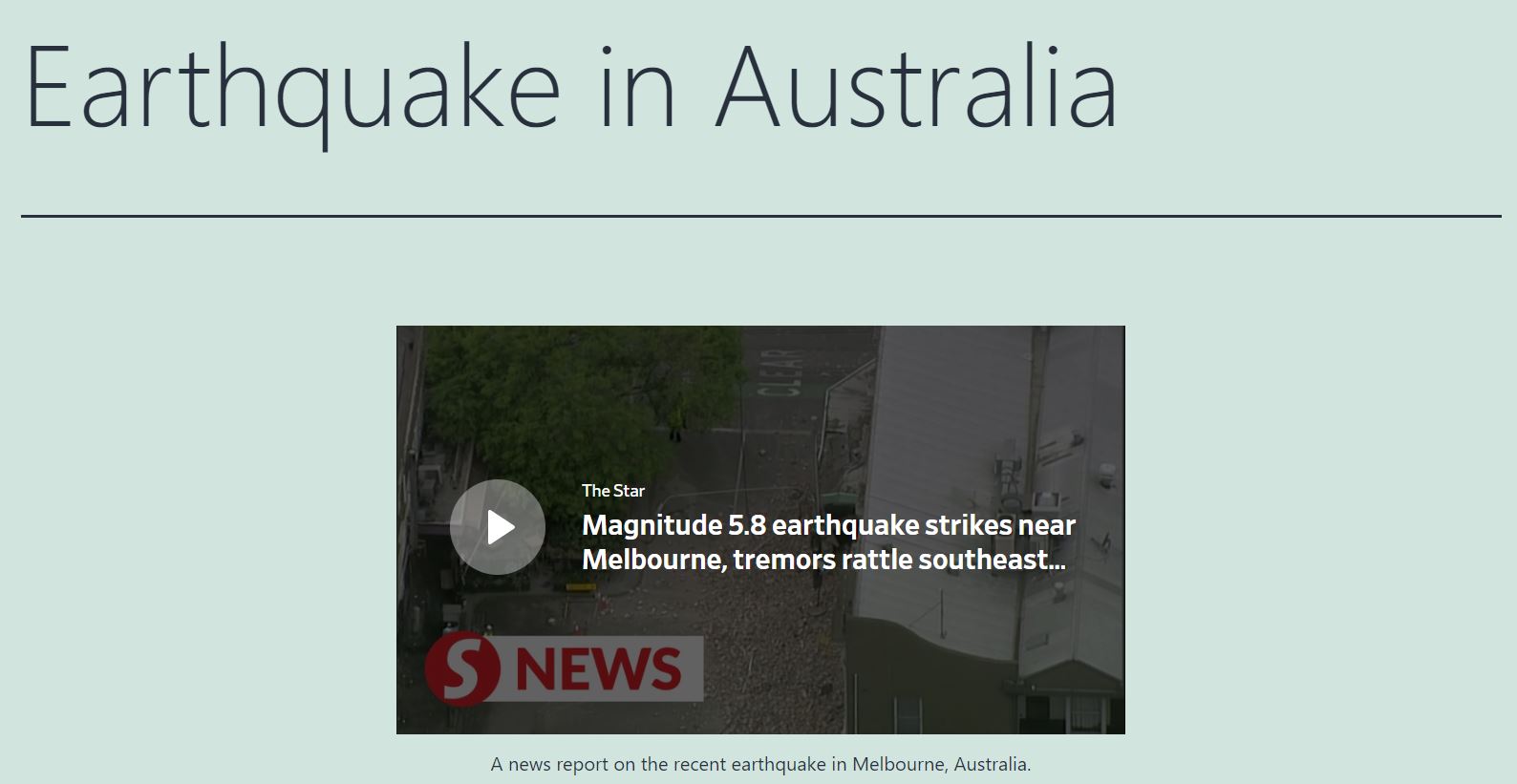
The Dailymotion website hosts a variety of free videos spanning the educational, news, and entertainment genres. You can freely display content from this platform on your own site, but embedding the videos can be challenging if you’re uncomfortable working with code. Fortunately, the Dailymotion embed block lets you insert videos into your posts and pages in just a few clicks.
In this article, we’ll give you an overview of the Dailymotion embed block and its various settings. We’ll also discuss some tips so you can get the most out of this WordPress element.
Let’s get started!
How to Add the Dailymotion Embed Block to Your Post or Page
There are a few different ways to add the Dailymotion embed block to your post or page. We’ll cover each one in detail, so you can choose the best method for you.
First, you can click on the plus (+) icon inside any post or page to insert a new block. Then, type in “Dailymotion” and click on the relevant element:
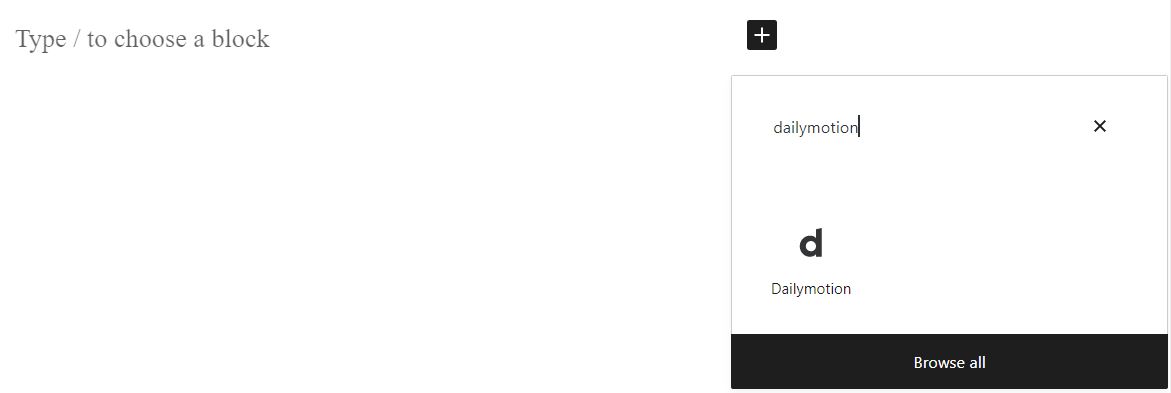
Alternatively, you can insert this block by typing “/dailymotion” into the Block Editor, and hitting Enter:
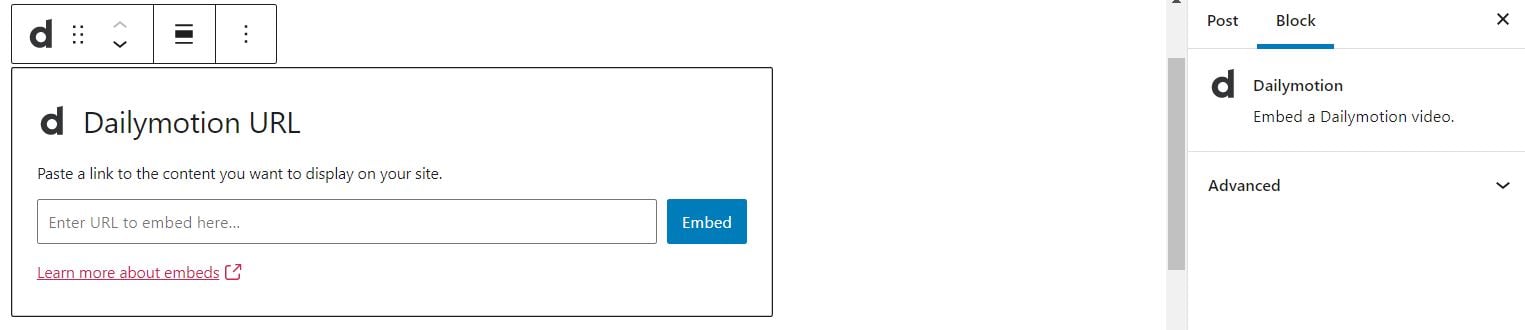
Now you need to add the URL for the video you want to display. Head to the Dailymotion website and open the video. You can find the relevant link in your search bar:
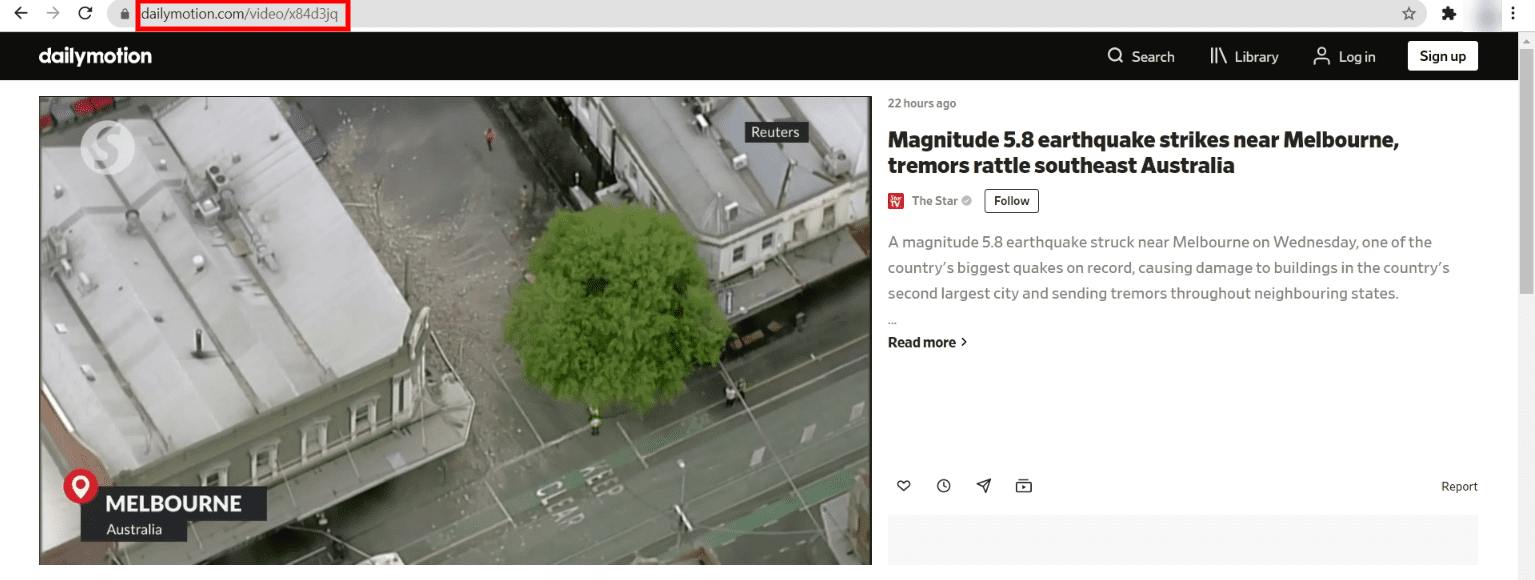
Copy the link and head back to your WordPress post or page. Then paste the URL into the block, and hit your Enter key or click on the Embed button. This will convert the block into an embedded video:
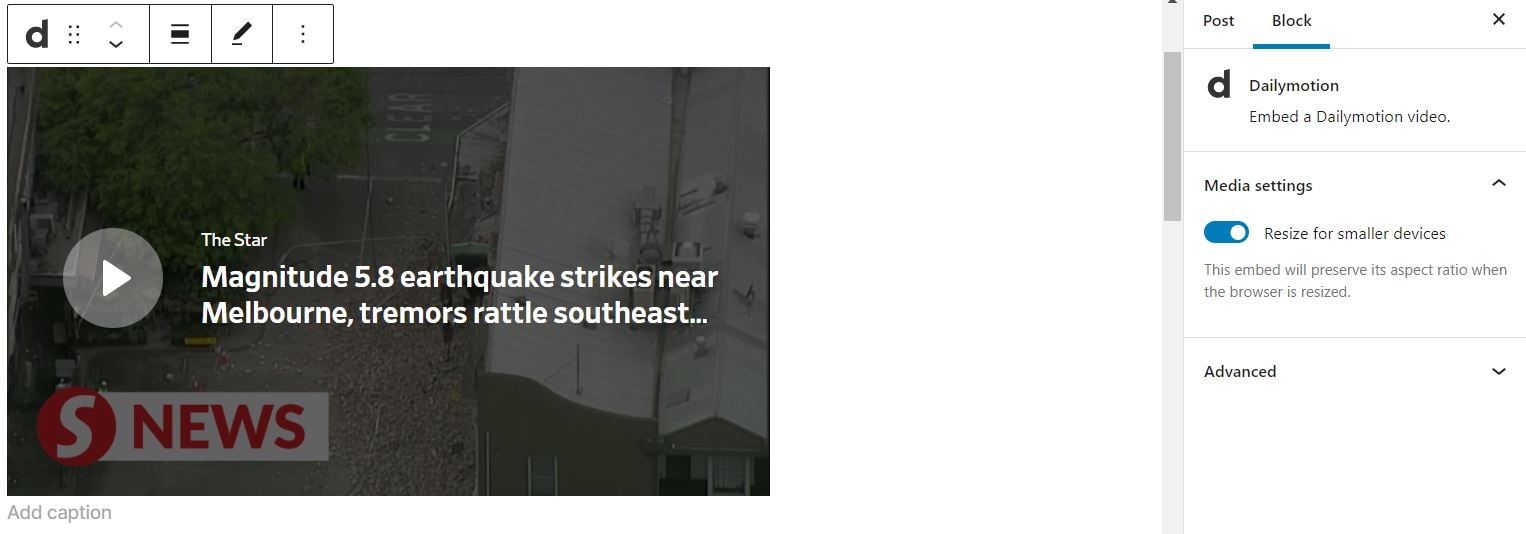
You can write a caption directly underneath the video if you like. In the next section, we’ll look at the different settings you can adjust for this WordPress block.
Dailymotion Embed Block Settings and Options
There are not many customizable settings for the Dailymotion embed block. However, you can make a few configurations so that this element better fits your needs.
In the block’s tool panel, you can choose from a couple of different options:
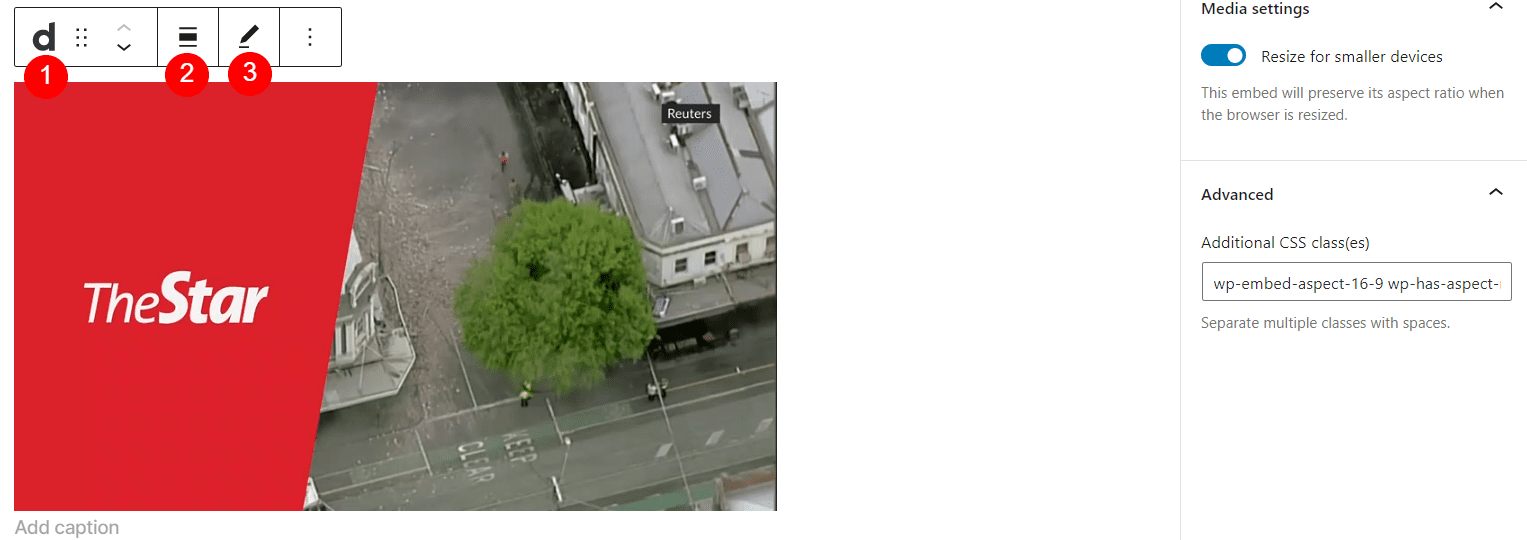
Here is a quick overview of these settings:
- Change block type or style: You can convert the embedded video into a Paragraph, Group, or Columns block.
- Alignment: This setting can position the video to the left, center, or right of the page. You can also choose a wide or full width layout.
- Edit URL: Here you can change the link to embed a different Dailymotion video.
If you change the embedded video into a Group block, this gives you access to different settings. For example, you can edit the background color to better fit your website’s style:
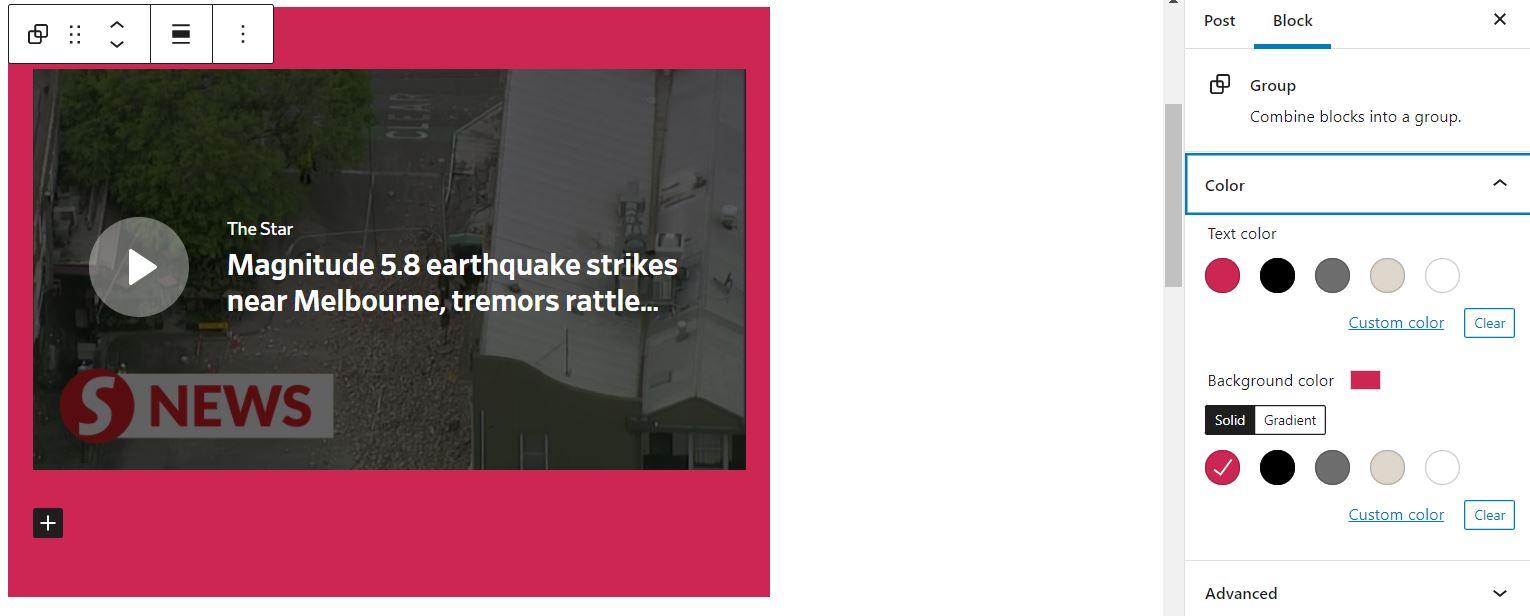
Additionally, you can adjust some settings in the menu to the right of the Block Editor:
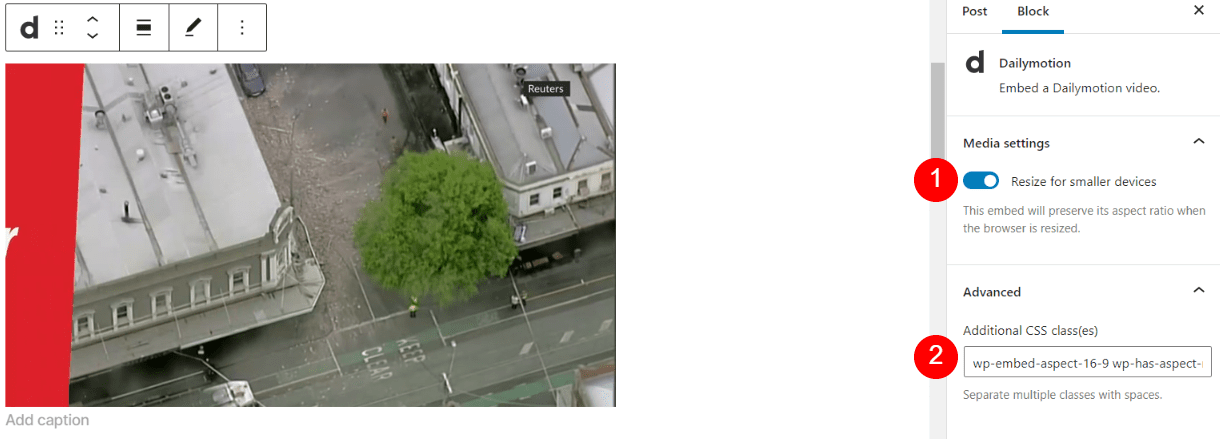
Under Media settings (1), you can enable or disable resizing of this element for smaller devices. Turning this option on will preserve the aspect ratio, so videos maintain the same appearance on desktop and mobile devices.
Finally, under Advanced (2) you can choose to apply additional CSS settings such as a border or other visual features.
Tips and Best Practices for Using the Dailymotion Embed Block
It’s relatively straightforward to use the Dailymotion embed block. However, there are a few things to keep in mind if you want to get the most out of this WordPress element.
For example, we recommend adding a caption to any embedded videos. By doing this, you can provide context to your readers and help them understand the content better:
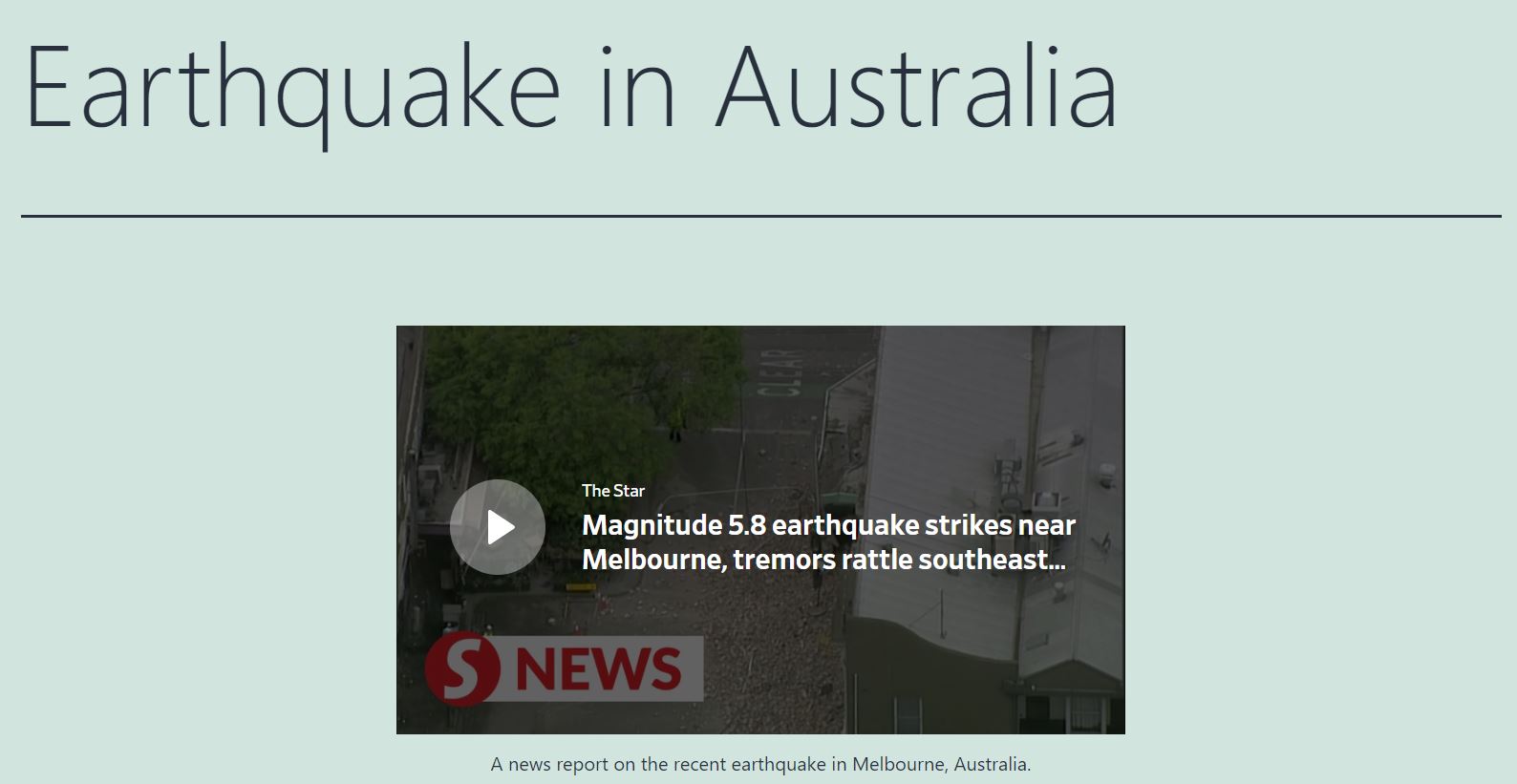
Furthermore, we recommend always using the Resize for smaller devices setting with this block. Otherwise, you risk the video not displaying correctly on mobile devices. This could turn away some of your readers if they can’t view the content properly.
Finally, we recommend choosing your video content carefully. This principle particularly applies if you’re embedding content from a third party. Your readers are likely coming to your page to hear your insights and guidance. Therefore, you probably don’t want to add multiple videos unless they’re very relevant to your audience’s needs.
Frequently Asked Questions about the Dailymotion Embed Block
We’ve already covered almost everything you need to know about using the Dailymotion embed block. However, there are some common questions that come up about this WordPress element. Let’s take a look at the most common queries.
How Can You Embed Dailymotion Videos?
You can insert Dailymotion videos into your posts and pages by using the Dailymotion embed block. You simply need to insert the content’s URL into the element. Then you can adjust settings to change its background color and its size on smaller devices.
Do You Need a Dailymotion Account to Embed Videos?
You don’t need a Dailymotion account to embed videos with this WordPress block. You can simply copy the URL for any video you’d like to display.
Does the Dailymotion Embed Block Work on Mobile Devices?
This WordPress block will display on mobile devices such as smartphones. You can toggle the size of the video when viewed on smaller screens by adjusting the element’s Media settings. There, you can choose to preserve the aspect ratio or disable it.
Are Dailymotion Videos Free to Use?
You can use Dailymotion videos on your WordPress site without paying for them or attributing the authors. You can simply insert the content using its URL and the Dailymotion embed block.
Which Link Should You Use in the Dailymotion Embed Block?
When you access a Dailymotion video, there are two links available. One URL is in your browser’s search bar, and you can find another one if you click on the video’s Share button. However, you can only use the browser link with the Dailymotion embed block.
Conclusion
If you’re looking to inform and entertain your readers, including videos in your posts and pages can support your goals. By using the Dailymotion embed block, you can quickly insert media content and adjust it to fit your needs.
This WordPress element enables you to embed videos with just a couple of clicks. You can also adapt the content to mobile devices and change its appearance. As such, you can customize the block to fit the theme and purpose of your website.
Do you have any questions about using the Dailymotion embed block? Let us know in the comments section below!
Featured image via monkographic/shutterstock.com
The post How to Use the WordPress Dailymotion Embed Block appeared first on Elegant Themes Blog.