TED Talks are among the most-watched videos on the internet. Years later, people still talk about some of the most iconic ones, including speeches by Bill Gates, Chimamanda Ngozi Adichie, and many more. The video platform that hosts this content is so popular that it even gets its own TED embed block in WordPress.
In this article, we’re going to show you how to add the TED embed block in WordPress. We’ll explain how to configure it, and discuss some tips and tricks for using the block effectively.
Let’s talk!
How to Add the TED Embed Block to Your Post or Page
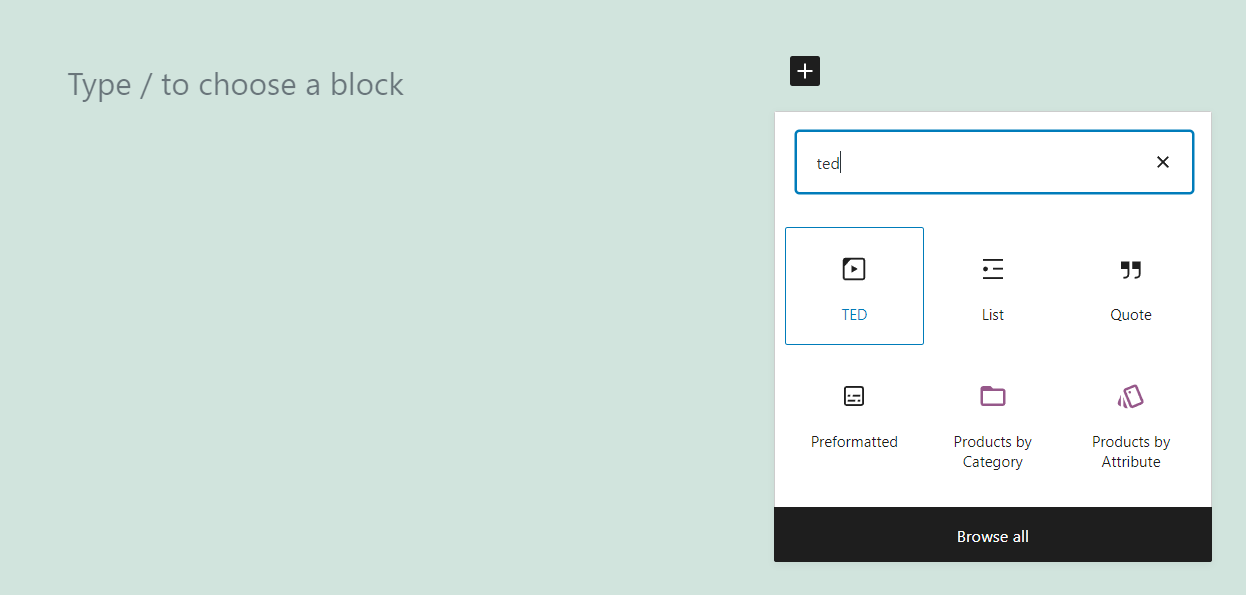
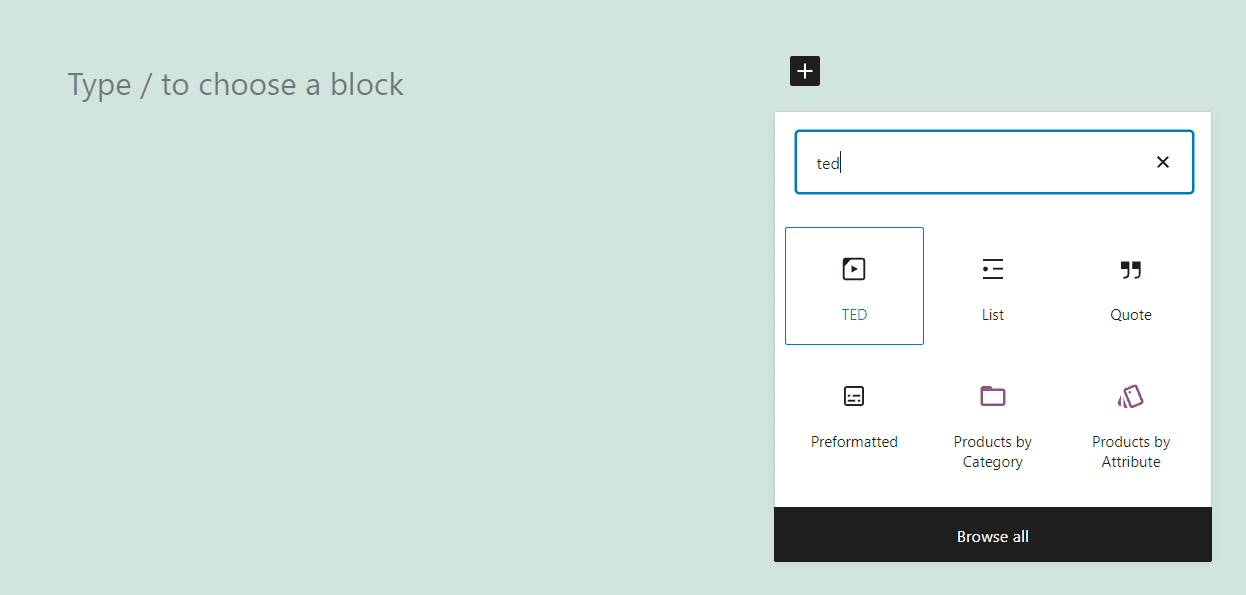
Adding embed blocks in WordPress tends to be very straightforward. To get started, open the Block Editor and look for the post or page you want to edit. Add a new block and select the TED option (you might have to use the search feature to find it):
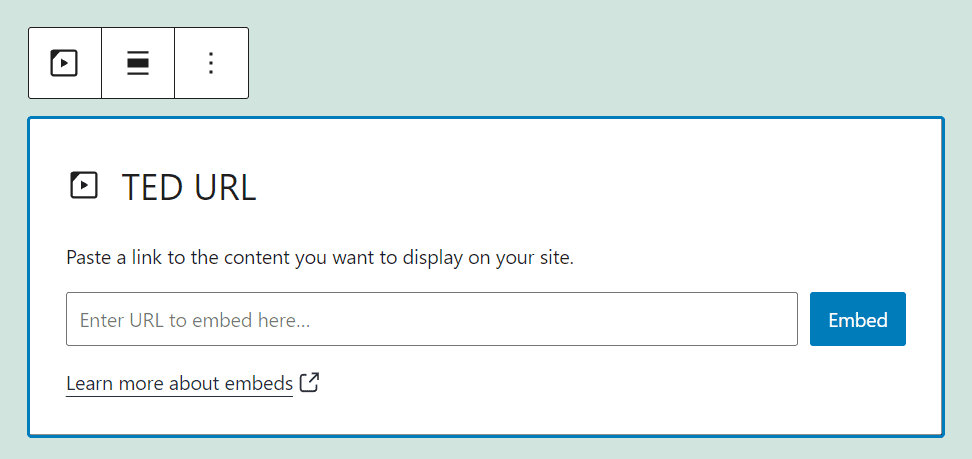
Once you add the block, you’ll see a field where you can enter the TED URL that you want to embed in WordPress. To get a TED Talks video URL, open its page and copy the full link from your browser’s navigation bar. That link should look something like this:
https://www.ted.com/talks/url-example
Go ahead and paste that URL within the TED block and click on Embed:
If the URL is valid, the block will automatically transform into a lite version of the TED Talks video player. This embedded player includes options for setting the video to full screen, adding captions, and more. However, it lacks advanced functionality, such as sharing options or the ability to modify the video’s playback speed:
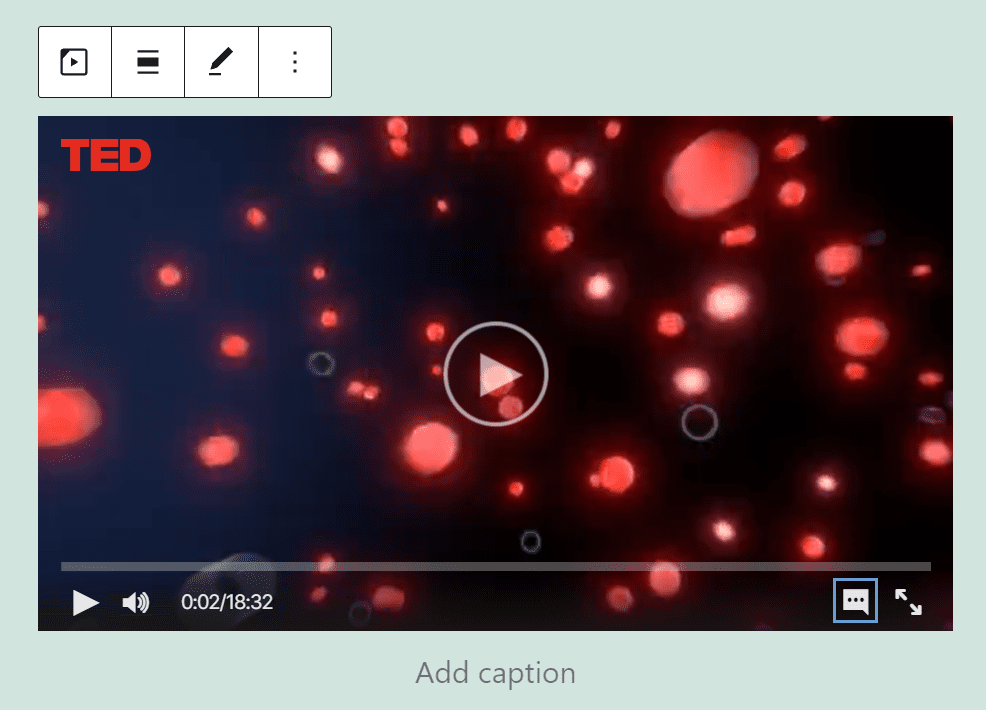
Fortunately, none of those features are critical, and in exchange you get to play TED Talks videos without hosting them on your server.
You can also skip selecting the TED block manually, and simply paste a valid TED Talks URL into a Paragraph block. When you do that, WordPress will automatically embed the video.
TED Embed Block Settings and Options
When you’re working with WordPress embed blocks, you often don’t get access to a lot of configuration options or settings. The TED block enables you to use the TED Talks video player on your site, but you don’t get to alter its default appearance or functionality.
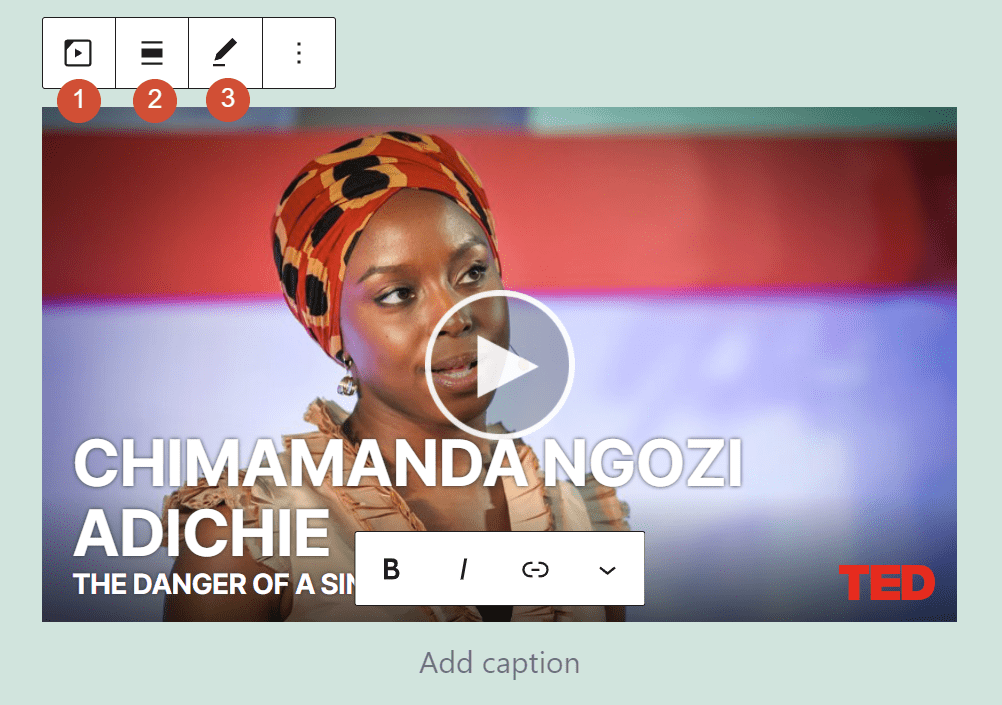
If you mouse over the TED block, you’ll see a simple formatting menu that includes three options:
- Switching the block for another element
- Modifying the block’s alignment
- Editing the TED video URL you entered previously
If you select the TED block and click on the gear icon on the top-right corner of the editor screen, an additional settings menu will appear. That menu includes an option to enable automatic resizing on smaller screens, and another for adding CSS classes to the block:
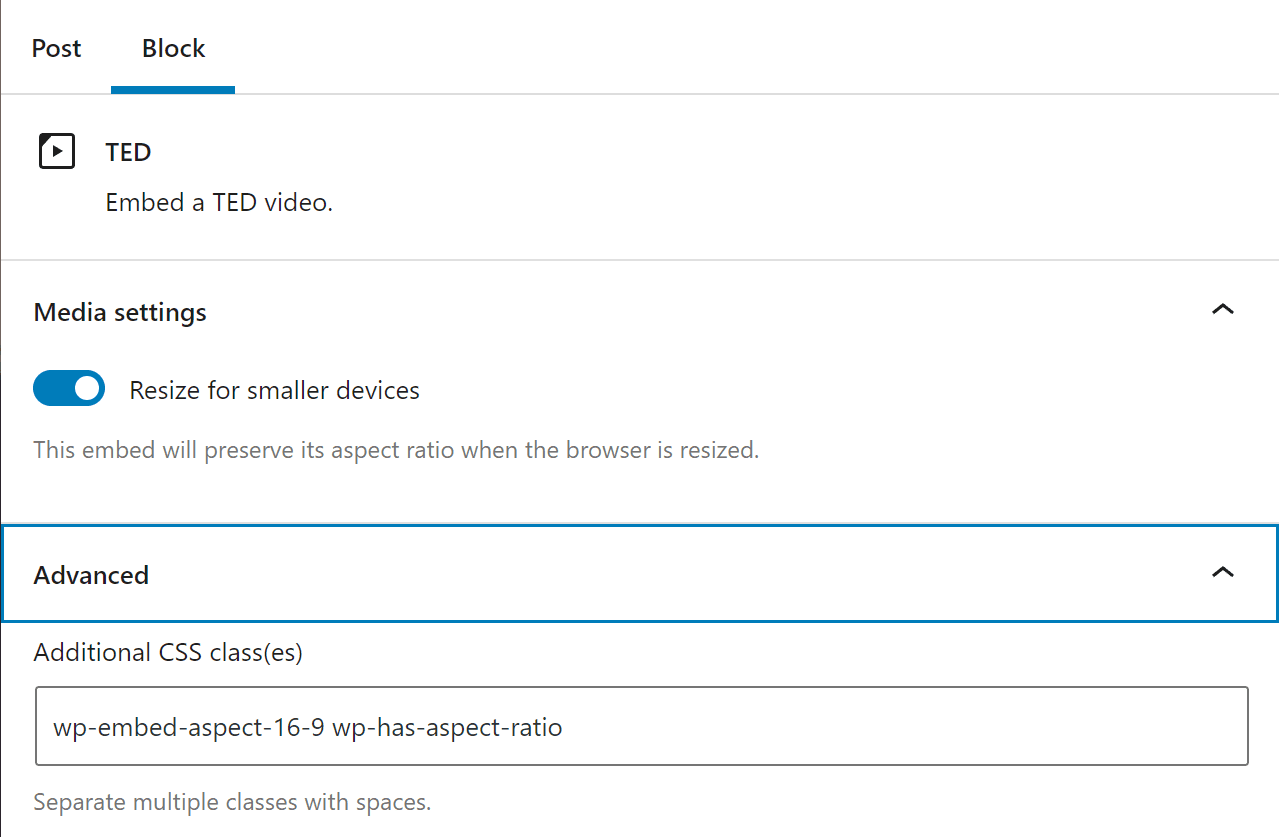
The Resize for smaller devices option should be turned on by default, and we recommend that you keep it that way so the video player adapts well to smaller screens. Additionally, the TED block comes with a preset CSS class that sets its base aspect ratio. You can add further CSS classes within that field, or remove the default aspect ratio if you’d rather set a different one.
Tips and Best Practices for Using the TED Embed Block Effectively
The TED block takes only seconds to set up and configure. All you have to do is enter a valid TED URL and you’re in business – visitors will be able to play the video from your website any time they want. The most important step is to enable the Resize for smaller devices option, so the TED video player looks good on mobile devices:
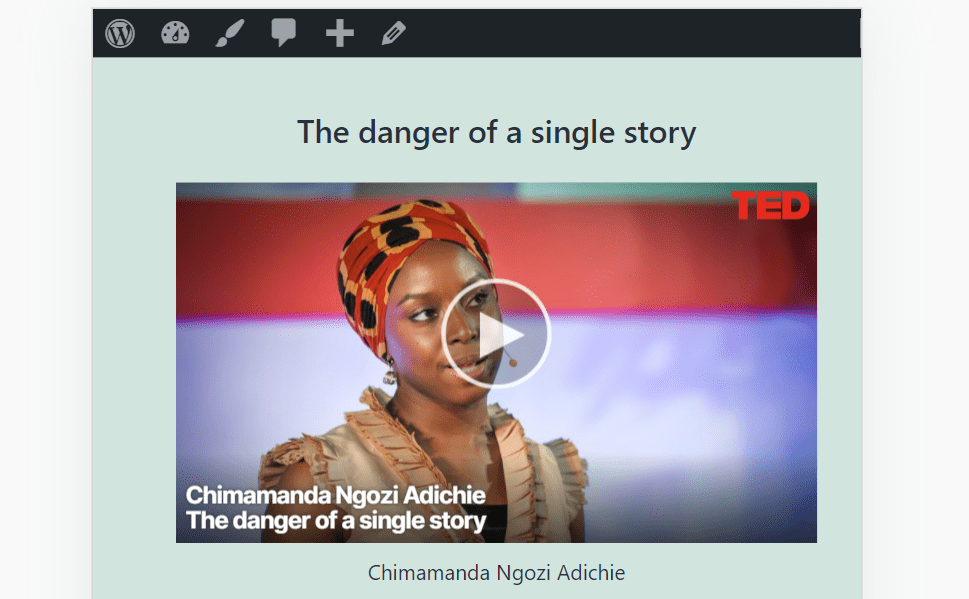
You’ll also need to remember that the TED block simply places a video player. The block doesn’t show any information about the video users are about to watch, which means you need to provide context.
If you’re adding a video within a page or blog post, let users know what they’re about to see using captions, headings, and/or regular paragraphs. Aside from those considerations, the TED block is essentially a plug-and-play element.
Frequently Asked Questions About the TED Embed Block
If you still have any questions left about the TED block and how to use it, this section will answer them. Let’s start by talking about server storage.
Do TED Videos Take Up Storage on My Server?
The TED block embeds the TED video player and reproduces media files from this third-party platform’s servers. At no point do those videos transfer to your website’s servers or take up any storage space. As a side note, this means that when users play those TED videos on your site, it won’t eat into your allotted bandwidth.
Why Can’t I Embed TED Videos on My Website?
If you don’t have access to the TED block, you might be using an outdated version of WordPress. Alternatively, if you can use the block but are unable to embed the video, check the URL you’re trying to add to make sure it’s correct.
Can I Embed Any TED Video on My Site?
You can take any video from the TED Talks library and embed it in WordPress using the TED block. The only caveat is that you should make sure the video is relevant to whichever page or post you’re adding it to.
Conclusion
Everyone loves TED Talks. They are often informative and inspiring, and you get to see some of the world’s most interesting people talking about the subjects they love. If you want to show your site’s visitors your favorite TED Talks and foster discussion around them, the TED embed block enables you to do so easily.
Adding the TED block is remarkably simple. All you have to do is get the URL for the TED Talks video you want to show and use the block to embed it. WordPress will automatically display the TED Talks video player for you.
Do you have any questions about how to use the TED embed block? Let’s talk about them in the comments section below!
Featured Image via FGC / shutterstock.com
The post How to Use the WordPress TED Embed Block appeared first on Elegant Themes Blog.